---
title: How to Install XAMPP for JavaScript
description: Learn how to install XAMPP on Windows, Ubuntu, and macOS to test PHP programs. Then learn about essential JavaScript keywords.
image: https://blog.rheinwerk-computing.com/hubfs/How%20to%20Install%20XAMPP%20for%20JavaScript.jpg
---
[](https://blog.rheinwerk-computing.com/) [Blog](https://blog.rheinwerk-computing.com)
- Books
- Get an overview of our wide selection of books on every relevant computing topic.
- [General Computing](https://www.sap-press.com/rheinwerk-computing/general-computing/)
- [DevOps](https://www.sap-press.com/rheinwerk-computing/devops/)
- [Programming Languages](https://www.sap-press.com/rheinwerk-computing/programming-languages/)
- [Security](https://www.sap-press.com/rheinwerk-computing/security/)
- [Software Development](https://www.sap-press.com/rheinwerk-computing/software-development/)
- Book Subscription
- Get unlimited access to all Rheinwerk Computing books!
- [Programming Subscription](https://sap-press.com/subscriptions/)
[Programming Languages](https://blog.rheinwerk-computing.com/tag/programming-languages)
# How to Install XAMPP for JavaScript
 by [Rheinwerk Computing](https://blog.rheinwerk-computing.com/author/rheinwerk-computing)
This blog post describes the installation of *XAMPP* and then provides a list of keywords in the JavaScript language.
## Installation of the XAMPP Package
In this appendix, we describe the installation of the free *XAMPP* package, which you can use to test [PHP](https://learning.rheinwerk-computing.com/programming-languages#php)programs. The currently available version of XAMPP (as of August 2024) is version 8.2.12.
### Installation on Windows
You can download the XAMPP for Windows package from *[https://www.apachefriends.org](https://www.apachefriends.org)*.
Then, start the installation by calling the executable file, in this case *xampp-windows-x64-8.2.12-0- VS16-installer.exe*. Two warnings may appear at the beginning, indicating that an antivirus program is running, among other things. You can continue here and confirm the suggested installation options. We recommend selecting *C:\\xampp* as the target directory.
After the installation, start the XAMPP Control Panel application, where you can start and stop the Apache web server using the button to the right of the word *Apache*.
If you receive the Unable to open process error message when starting the server, it may be due to a port that is already being used. You can find clear instructions on how to rectify this problem at the following address: [*http://www.coder-welten.com/windows-10-unable-to-open-process*](http://www.coder-welten.com/windows-10-unable-to-open-process). (Note that this very descriptive article is in German. In a modern browser, you can have it automatically translated.)
You can reach the start page of the local web server in your browser via the *localhost* address, and you can save your [HTML](https://learning.rheinwerk-computing.com/html-and-css)files and PHP programs in the *C:\\xampp\\htdocs* directory and in the directories below it.
The following PHP program enables you to check whether the installation was successful. You can write it using an editor and save it in the *C:\\xampp\\htdocs\\phpinfo.php* file:
``
After you enter the corresponding *localhost/phpinfo.php* address in the browser, information about the installed PHP version appears.
Stop the Apache web server in the XAMPP Control Panel application, then close the application.
## Installation on Ubuntu Linux
You can download the XAMPP for Linux package from [https://www.apachefriends.org](https://www.apachefriends.org). After the download, the *xampp-linux-x64-8.2.12-0-installer.run* file is available.
Open a terminal to enter the installation commands, and if necessary, change the access rights to the file by using the following command:
`chmod 744 xampp-linux-x64-8.2.12-0-installer.run`
Start the installation via this command:
`sudo ./xampp-linux-x64-8.2.12-0-installer.run`
You can confirm the suggested installation options, and XAMPP will be installed in the */opt/lampp* directory.
At the end of the installation, you can leave the **Launch Xampp** checkbox checked. This opens a dialog box for managing the various servers. On the **Manage Servers** tab, you have the option of selecting the Apache web server and starting and stopping it using the button on the right. You can also call the dialog box for managing the servers directly as follows:
`sudo /opt/lampp/manager-linux-x64.run`
However, the Apache web server of Ubuntu Linux is often already running after a system start. If it is running, the Apache web server of XAMPP can’t start. If that happens, you must first terminate the Apache web server of Ubuntu Linux once, using the following command:
`sudo /etc/init.d/apache2 stop`
After that, you can start the Apache web server of XAMPP as described previously.
To avoid having to close the Apache web server of Ubuntu Linux after every system start, you can deactivate the automatic start of the associated service with the following command:
`sudo update-rc.d apache2 disable`
If you want to reactivate the automatic start of the associated service at some point, you can do so via the following command:
`sudo update-rc.d apache2 enable`
You can reach the start page of the local web server in your browser via the *localhost* address, and then, you can save your HTML files and PHP programs in the */opt/lampp/htdocs* directory and in the directories below it.
To test whether the installation was successful, you can use the PHP program below. You can write and save it in the *phpinfo.php* file using the *nano* editor as follows:
`sudo nano /opt/lampp/htdocs/phpinfo.php`
You can exit the nano editor as follows: press (Ctrl)+(X), confirm with **Yes** at the bottom under **Save**, and confirm the suggested file name. The PHP program looks as follows:
``
After you enter the corresponding *localhost/phpinfo.php* address in the browser, information about the installed PHP version appears.
### Installation on macOS
You can download the XAMPP for OS X package from *[https://www.apachefriends.org](https://www.apachefriends.org)*. After that, the *xampp-osx-8.2.12-0-installer.dmg* file is available. Double-click on this file to create a new drive, and then, you can call the installation file located on the new drive.
Since the installation program doesn’t come from a verified Apple developer, it gets initially blocked by macOS. Call the **Security** menu item in the system settings, and there, you’ll find the **Open anyway** button next to the reference to XAMPP. After clicking that button, you’ll have the option of starting the installation program.
By default, XAMPP is installed in the */Applications/XAMPP* directory, which corresponds to the *Applications/XAMPP* directory in the Finder.
At the end of the installation, you can leave the **Launch Xampp** checkbox checked. This opens a dialog box for managing the various servers. On the **Manage Servers** tab, you have the option of selecting the Apache web server and starting and stopping it using the button on the right. You can also call the dialog box for managing the various servers via *Applications/XAMPP/manager-osx*.
You can reach the start page of the local web server in your browser via the *localhost* address, and you can save your HTML files and PHP programs in the *Applications/XAMPP/htdocs* directory and in the directories below it.
To test whether the installation was successful, you can use the following PHP program. You can write and save it in the *Applications/XAMPP/htdocs/phpinfo.php* file using the TextWrangler editor from the App Store.
The PHP program looks like this:
``
After you enter the corresponding *localhost/phpinfo.php* address in the browser, information about the installed PHP version appears.
## List of Keywords
When creating variables and your own functions, you should assign custom names that are as self-explanatory as possible. The assignment of names should follow certain rules, and in particular, you may not use the following names of keywords of the [JavaScript](https://learning.rheinwerk-computing.com/javascript)language because they have been or will be used by JavaScript itself:
`await, abstract, boolean, break, byte, case, catch, char, class, const, continue, debugger,` `default, delete, do, double, else, enum, export, extends, false, final, finally, float, for, ``function, get, goto, if, implements, import, in, instanceof, int, interface, let, long,` `native, new, null, package, protected, private, prototype, public, return, set, short, super,` `static, switch, synchronized, this, throw, throws, true, transient, try, typeof, undefined,` `var, void, volatile, while, with, and yield.`
Editor’s note: This post has been adapted from a section of the book *[Getting Started with JavaScript](https://www.sap-press.com/getting-started-with-javascript_5875/?utm_source=sappressblog&utm_medium=referral&utm_campaign=Blogs&utm_term=2583_appendixa&utm_content=2583)* by [Thomas Theis](https://www.linkedin.com/in/thomas-theis-552842131/). Thomas has more than 40 years of experience as a software developer and as an IT lecturer. He holds a graduate degree in computer engineering. He has taught at numerous institutions, including the Aachen University of Applied Sciences. He is the author of several successful technical books on the topics of [Python](https://learning.rheinwerk-computing.com/python), [C#](https://learning.rheinwerk-computing.com/programming-languages#c-sharp), PHP, C++, and Unity.
This post was originally published in 3/2025.
## Recommendation
[](https://www.sap-press.com/getting-started-with-javascript_5875/?utm_source=sappressblog&utm_medium=referral&utm_campaign=Blogs&utm_term=2583_appendixa&utm_content=2583)
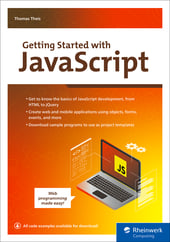
**Getting Started with JavaScript**
New to programming and JavaScript? Look no further! With this beginner’s guide, learn the language ABCs and start developing applications. Walk through the programming basics: branches, functions, methods, objects, and more. Then create forms and events; use the Document Object Model (DOM); and work with large data sets, processing strings, mathematics, time, and other data structures. Design your web and mobile applications using tools like Ajax, CSS, jQuery, and Onsen UI. Follow code examples and expert tips, and you’ll be developing in no time!
[Learn More](https://www.sap-press.com/getting-started-with-javascript_5875/?utm_source=sappressblog&utm_medium=referral&utm_campaign=Blogs&utm_term=2583_appendixa&utm_content=2583)

**by [Rheinwerk Computing](https://blog.rheinwerk-computing.com/author/rheinwerk-computing)**
Rheinwerk Computing is an imprint of Rheinwerk Publishing and publishes books by leading experts in the fields of programming, administration, security, analytics, and more.
[Programming Languages](https://blog.rheinwerk-computing.com/tag/programming-languages) [JavaScript](https://blog.rheinwerk-computing.com/tag/javascript) [How To](https://blog.rheinwerk-computing.com/tag/how-to)
[](https://www.facebook.com/share.php?u=https%3A%2F%2Fblog.rheinwerk-computing.com%2Fhow-to-install-xampp-for-javascript%3Futm_medium%3Dsocial%26utm_source%3Dfacebook) [](https://www.linkedin.com/shareArticle?mini=true&url=https%3A%2F%2Fblog.rheinwerk-computing.com%2Fhow-to-install-xampp-for-javascript%3Futm_medium%3Dsocial%26utm_source%3Dlinkedin) [](https://twitter.com/intent/tweet?original_referer=https%3A%2F%2Fblog.rheinwerk-computing.com%2Fhow-to-install-xampp-for-javascript%3Futm_medium%3Dsocial%26utm_source%3Dtwitter&url=https%3A%2F%2Fblog.rheinwerk-computing.com%2Fhow-to-install-xampp-for-javascript%3Futm_medium%3Dsocial%26utm_source%3Dtwitter&source=tweetbutton&text=) [](mailto:?subject=Check+out+https%3A%2F%2Fblog.rheinwerk-computing.com%2Fhow-to-install-xampp-for-javascript%3Futm_medium%3Dsocial%26utm_source%3Demail&body=Check+out+https%3A%2F%2Fblog.rheinwerk-computing.com%2Fhow-to-install-xampp-for-javascript%3Futm_medium%3Dsocial%26utm_source%3Demail)
### Comments
### Latest Blog Posts
[](https://blog.rheinwerk-computing.com/how-to-compile-nodejs-from-source-a-step-by-step-guide-for-ubuntu)
[Programming Languages](https://blog.rheinwerk-computing.com/tag/programming-languages)
## [How to Compile Node.js from Source: A Step-by-Step Guide for Ubuntu](https://blog.rheinwerk-computing.com/how-to-compile-nodejs-from-source-a-step-by-step-guide-for-ubuntu)
[Read More](https://blog.rheinwerk-computing.com/how-to-compile-nodejs-from-source-a-step-by-step-guide-for-ubuntu)
[](https://blog.rheinwerk-computing.com/what-is-nw.js)
[What Is?](https://blog.rheinwerk-computing.com/tag/what-is)
## [What Is NW.js?](https://blog.rheinwerk-computing.com/what-is-nw.js)
[Read More](https://blog.rheinwerk-computing.com/what-is-nw.js)
**Subscribe to our blog!**Get notified about future blog updates.
-
-
-
### The official Rheinwerk Computing Blog
Rheinwerk Computing is an imprint of Rheinwerk Publishing and publishes resources that will help you accelerate your computing journey. The Rheinwerk Computing Blog is designed to provide helpful, actionable information on a variety of topics, including programming, administration, security, and analytics!
### Blog Topics
- [All Topics](https://blog.rheinwerk-computing.com)
- [Programming Languages](https://blog.rheinwerk-computing.com/tag/programming-languages)
- [How To](https://blog.rheinwerk-computing.com/tag/how-to)
- [JavaScript](https://blog.rheinwerk-computing.com/tag/javascript)
- [DevOps](https://blog.rheinwerk-computing.com/tag/devops)
- [Web Development](https://blog.rheinwerk-computing.com/tag/web-development)
- [Python](https://blog.rheinwerk-computing.com/tag/python)
- [What Is?](https://blog.rheinwerk-computing.com/tag/what-is)
- [Cybersecurity](https://blog.rheinwerk-computing.com/tag/cybersecurity)
- [Software Development](https://blog.rheinwerk-computing.com/tag/software-development)
- [Java](https://blog.rheinwerk-computing.com/tag/java)
### Blog curated by
[](https://www.sap-press.com/rheinwerk-computing/) [Visit Rheinwerk Computing Store](https://www.sap-press.com/rheinwerk-computing/)
### About
- [Home](https://sap-press.com/)
- [About Us](https://sap-press.com/the-publisher/)
- [Contact](mailto:info@rheinwerk-publishing.com)
- [Legal Notes](https://sap-press.com/legal-notes/)
- [Privacy Policy](https://sap-press.com/privacy/)
- [Terms of Use](https://sap-press.com/terms/)
© 2026 Rheinwerk Publishing, Inc. | Change Privacy Options
```json
{
"@context" : "https://schema.org",
"@type" : "BlogPosting",
"author" : {
"@type" : "Person",
"name" : "Rheinwerk Computing",
"url" : "https://blog.rheinwerk-computing.com/author/rheinwerk-computing"
},
"dateModified" : "2025-12-18T16:25:35.887Z",
"datePublished" : "2025-03-14T13:00:00.000Z",
"headline" : "How to Install XAMPP for JavaScript",
"image" : [ "https://blog.rheinwerk-computing.com/hubfs/How%20to%20Install%20XAMPP%20for%20JavaScript.jpg" ],
"mainEntityOfPage" : {
"@id" : "https://blog.rheinwerk-computing.com/how-to-install-xampp-for-javascript",
"@type" : "WebPage"
},
"publisher" : {
"@type" : "Organization",
"logo" : {
"@type" : "ImageObject",
"url" : "https://blog.rheinwerk-computing.com/hubfs/Logo-1.jpg"
},
"name" : "Rheinwerk Publishing, Inc."
}
}
```