---
title: How to Do Freehand Drawing in Excel
description: Learn how to use Excel's freehand drawing tools to highlight data, create sketches, and insert handwritten equations using the Draw tab.
image: https://blog.rheinwerk-computing.com/hubfs/How%20to%20Do%20Freehand%20Drawing%20in%20Excel.jpg
---
[](https://blog.rheinwerk-computing.com/) [Blog](https://blog.rheinwerk-computing.com)
- Books
- Get an overview of our wide selection of books on every relevant computing topic.
- [General Computing](https://www.sap-press.com/rheinwerk-computing/general-computing/)
- [DevOps](https://www.sap-press.com/rheinwerk-computing/devops/)
- [Programming Languages](https://www.sap-press.com/rheinwerk-computing/programming-languages/)
- [Security](https://www.sap-press.com/rheinwerk-computing/security/)
- [Software Development](https://www.sap-press.com/rheinwerk-computing/software-development/)
- Book Subscription
- Get unlimited access to all Rheinwerk Computing books!
- [Programming Subscription](https://sap-press.com/subscriptions/)
[Featured](https://blog.rheinwerk-computing.com/tag/featured)
# How to Do Freehand Drawing in Excel
 by [Rheinwerk Computing](https://blog.rheinwerk-computing.com/author/rheinwerk-computing)
Excel is best known for formulas, data, and grids, but it also includes a surprisingly capable set of freehand drawing tools.
Whether you want to highlight key values in a table, sketch a quick diagram, or insert a handwritten equation, the Draw tab gives you more flexibility than most users ever discover. Here's a look at what's available and how to put it to use.
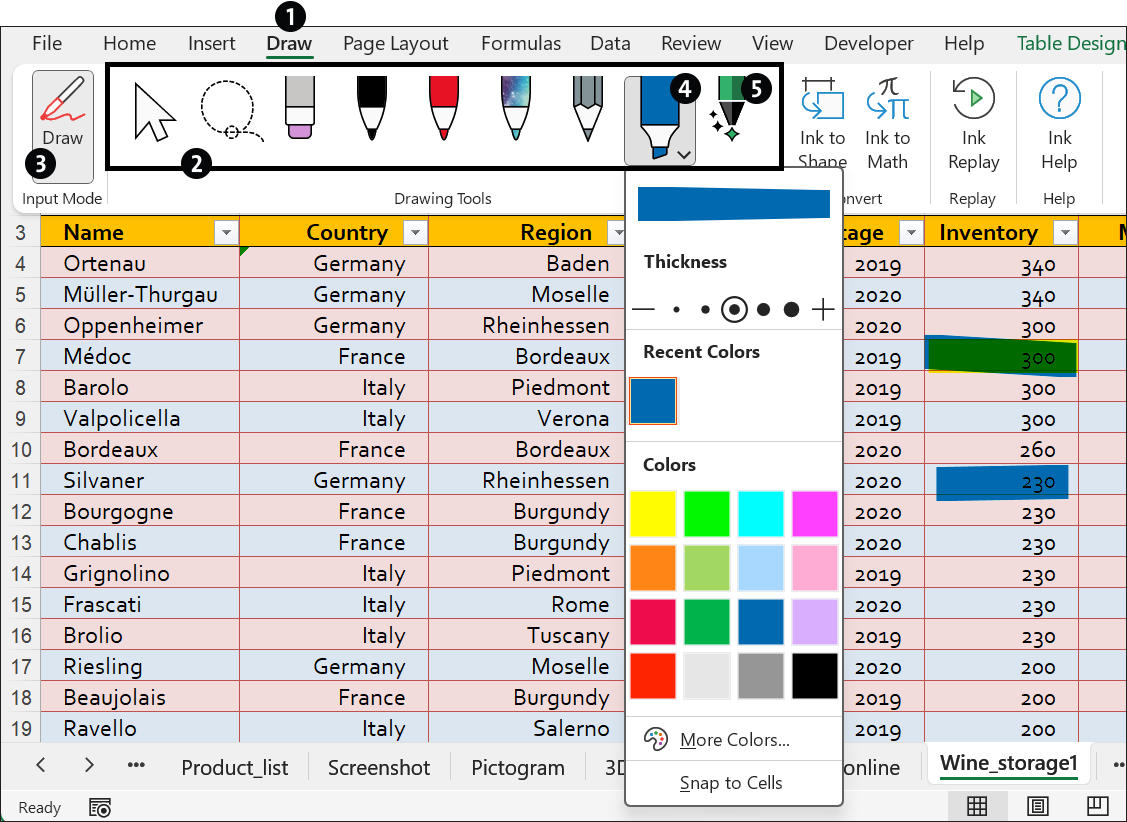
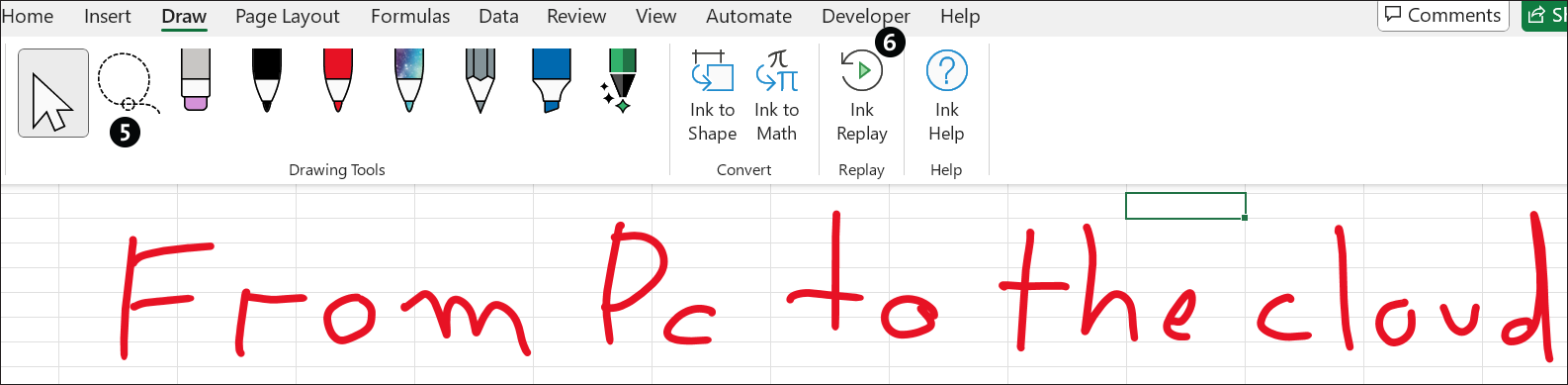
The **Draw** tab (1) is especially useful when working with a touchscreen and pen. Touch input is possible but less precise.
Even without a touchscreen, you can use this tab to highlight specific values in a table with your mouse. You can show or hide the tab via **File >** **Options >** **Customize Ribbon**.
## Highlights and Handwritten Comments
To highlight specific values in a table, just click or tap one of the markers under **Drawing Tools** (2) and use it to mark the values. To turn it off, click or tap the **Draw** (3) icon. Highlights will appear as transparent graphics over the cell contents, and you can handle them like graphic objects if you need to.
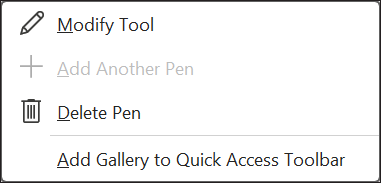
You can easily adjust all pens’ line thickness and color by opening the palette via the small arrow (4) at the bottom right. The **Action Pen** (5) on the far right lets you draw numbers that Excel automatically converts into numeric values. Pens offer not only colors but also various textures, and you can use a pen’s context menu to change its composition and order.
Your custom pen selection will be available in all Office apps.
## Creating Sketches
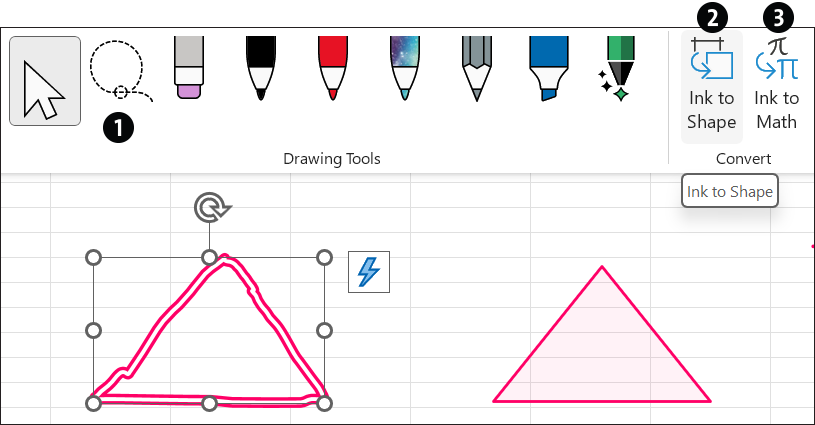
Besides highlighting or handwriting notes on table data, you can use pens to create quick sketches. Excel can even turn a rough line into a perfect triangle or circle. To do this, circle the object with the lasso tool (1) and then click the **Ink to Shape** (2) button.
## Inserting Mathematical Equations
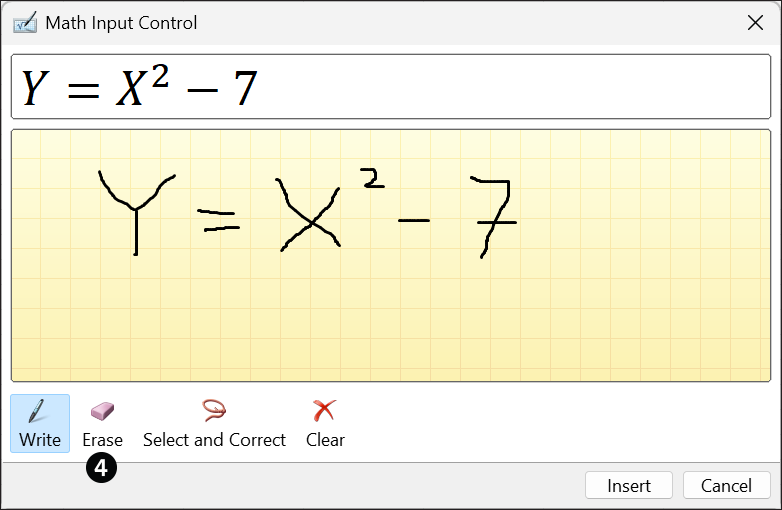
It works the same way with math. To insert a mathematical equation into a sheet to document a calculation, click **Ink to Math** (3) and draw the formula by hand after clicking or tapping **Write** in the dialog box. Your handwriting will instantly be converted into math in the header. If there are errors, you can circle them by using **Select and Correct** and usually fix them by choosing from the suggested list. Click **Insert** to add the formula to the worksheet as a graphic object.
To remove a hand-drawn element, use the **Erase** icon (4) and drag the small eraser over the element. This doesn’t apply to converted shapes or equations, which you can delete like regular graphic objects. To select multiple items at once, click the **Lasso Selection** icon (5) and draw a lasso around the items.
You can also use the **Ink Replay** (6) feature, which plays your freehand drawings in the order you created them.
On the **Review** tab, use **Ink >** **Hide Ink** to hide all freehand elements when you don’t need them. They won’t be deleted, though, and you can click the same button to show them again.
## Conclusion
Excel's drawing tools won't replace dedicated illustration software, but they fill a genuine gap for users who want to annotate data, sketch ideas, or document calculations without leaving the spreadsheet. The Draw tab is worth a few minutes of exploration, especially if you work with a touchscreen or regularly share workbooks where visual callouts would add clarity.
Editor’s note: This post has been adapted from a section of the book *[Excel: The Comprehensive Guide](https://www.amazon.com/Excel-Comprehensive-Beginners-Step-Step/dp/1493227807?maas=maas_adg_23BAA3951B4180A2CE060578B2602B56_afap_abs&ref_=aa_maas&tag=maas)* by Helmut Vonhoegen. Helmut is a freelance author and IT consultant. He has published more than 80 books since 1992 and written numerous articles in specialist journals. His focus is Microsoft Office, Windows, web programming, and XML.
This post was originally published 7/2026.
## Recommendation
[](https://www.amazon.com/Excel-Comprehensive-Beginners-Step-Step/dp/1493227807?maas=maas_adg_23BAA3951B4180A2CE060578B2602B56_afap_abs&ref_=aa_maas&tag=maas)
**Organize, Analyze, and Visualize Data with Excel!**
Whether you're just getting started or looking for a reliable reference to level up your skills, this all-in-one guide covers everything Excel has to offer — from formulas and table design to data analysis, visualizations, macros, and VBA. Updated for Excel 2024 and Microsoft 365, it's the only Excel resource you'll need.
[Learn More](https://www.amazon.com/Excel-Comprehensive-Beginners-Step-Step/dp/1493227807?maas=maas_adg_23BAA3951B4180A2CE060578B2602B56_afap_abs&ref_=aa_maas&tag=maas)

**by [Rheinwerk Computing](https://blog.rheinwerk-computing.com/author/rheinwerk-computing)**
Rheinwerk Computing is an imprint of Rheinwerk Publishing and publishes books by leading experts in the fields of programming, administration, security, analytics, and more.
[Featured](https://blog.rheinwerk-computing.com/tag/featured) [Marketing and Analytics](https://blog.rheinwerk-computing.com/tag/marketing-and-analytics)
[](https://www.facebook.com/share.php?u=https%3A%2F%2Fblog.rheinwerk-computing.com%2Fhow-to-do-freehand-drawing-in-excel%3Futm_medium%3Dsocial%26utm_source%3Dfacebook) [](https://www.linkedin.com/shareArticle?mini=true&url=https%3A%2F%2Fblog.rheinwerk-computing.com%2Fhow-to-do-freehand-drawing-in-excel%3Futm_medium%3Dsocial%26utm_source%3Dlinkedin) [](https://twitter.com/intent/tweet?original_referer=https%3A%2F%2Fblog.rheinwerk-computing.com%2Fhow-to-do-freehand-drawing-in-excel%3Futm_medium%3Dsocial%26utm_source%3Dtwitter&url=https%3A%2F%2Fblog.rheinwerk-computing.com%2Fhow-to-do-freehand-drawing-in-excel%3Futm_medium%3Dsocial%26utm_source%3Dtwitter&source=tweetbutton&text=) [](mailto:?subject=Check+out+https%3A%2F%2Fblog.rheinwerk-computing.com%2Fhow-to-do-freehand-drawing-in-excel%3Futm_medium%3Dsocial%26utm_source%3Demail&body=Check+out+https%3A%2F%2Fblog.rheinwerk-computing.com%2Fhow-to-do-freehand-drawing-in-excel%3Futm_medium%3Dsocial%26utm_source%3Demail)
### Comments
### Latest Blog Posts
[](https://blog.rheinwerk-computing.com/how-to-customize-excel-options-defaults-and-interface-settings-explained)
[Featured](https://blog.rheinwerk-computing.com/tag/featured)
## [How to Customize Excel: Options, Defaults, and Interface Settings Explained](https://blog.rheinwerk-computing.com/how-to-customize-excel-options-defaults-and-interface-settings-explained)
[Read More](https://blog.rheinwerk-computing.com/how-to-customize-excel-options-defaults-and-interface-settings-explained)
[](https://blog.rheinwerk-computing.com/how-to-navigate-large-worksheets-in-excel)
[Marketing and Analytics](https://blog.rheinwerk-computing.com/tag/marketing-and-analytics)
## [How to Navigate Large Worksheets in Excel](https://blog.rheinwerk-computing.com/how-to-navigate-large-worksheets-in-excel)
[Read More](https://blog.rheinwerk-computing.com/how-to-navigate-large-worksheets-in-excel)
**Subscribe to our blog!**Get notified about future blog updates.
-
-
-
### The official Rheinwerk Computing Blog
Rheinwerk Computing is an imprint of Rheinwerk Publishing and publishes resources that will help you accelerate your computing journey. The Rheinwerk Computing Blog is designed to provide helpful, actionable information on a variety of topics, including programming, administration, security, and analytics!
### Blog Topics
- [All Topics](https://blog.rheinwerk-computing.com)
- [Programming Languages](https://blog.rheinwerk-computing.com/tag/programming-languages)
- [How To](https://blog.rheinwerk-computing.com/tag/how-to)
- [JavaScript](https://blog.rheinwerk-computing.com/tag/javascript)
- [DevOps](https://blog.rheinwerk-computing.com/tag/devops)
- [Web Development](https://blog.rheinwerk-computing.com/tag/web-development)
- [Python](https://blog.rheinwerk-computing.com/tag/python)
- [What Is?](https://blog.rheinwerk-computing.com/tag/what-is)
- [Cybersecurity](https://blog.rheinwerk-computing.com/tag/cybersecurity)
- [Software Development](https://blog.rheinwerk-computing.com/tag/software-development)
- [Java](https://blog.rheinwerk-computing.com/tag/java)
### Blog curated by
[](https://www.sap-press.com/rheinwerk-computing/) [Visit Rheinwerk Computing Store](https://www.sap-press.com/rheinwerk-computing/)
### About
- [Home](https://sap-press.com/)
- [About Us](https://sap-press.com/the-publisher/)
- [Contact](mailto:info@rheinwerk-publishing.com)
- [Legal Notes](https://sap-press.com/legal-notes/)
- [Privacy Policy](https://sap-press.com/privacy/)
- [Terms of Use](https://sap-press.com/terms/)
© 2026 Rheinwerk Publishing, Inc. | Change Privacy Options
```json
{
"@context" : "https://schema.org",
"@type" : "BlogPosting",
"author" : {
"@type" : "Person",
"name" : "Rheinwerk Computing",
"url" : "https://blog.rheinwerk-computing.com/author/rheinwerk-computing"
},
"dateModified" : "2026-07-01T14:25:25.982Z",
"datePublished" : "2026-07-01T13:00:07.000Z",
"headline" : "How to Do Freehand Drawing in Excel",
"image" : [ "https://blog.rheinwerk-computing.com/hubfs/How%20to%20Do%20Freehand%20Drawing%20in%20Excel.jpg" ],
"mainEntityOfPage" : {
"@id" : "https://blog.rheinwerk-computing.com/how-to-do-freehand-drawing-in-excel",
"@type" : "WebPage"
},
"publisher" : {
"@type" : "Organization",
"logo" : {
"@type" : "ImageObject",
"url" : "https://blog.rheinwerk-computing.com/hubfs/Logo-1.jpg"
},
"name" : "Rheinwerk Publishing, Inc."
}
}
```